Click-to-Segment: Bringing AI-powered Interactive Segmentation to FiftyOne Labs
Author

Senior Machine Learning Engineer
I enjoy building machine learning systems at the intersection of computer vision, robotics, and 3D perception.
Over the past 9+ years, I've worked on neural rendering, scene understanding, AI-assisted annotation, foundation models, and scalable ML infrastructure for augmented reality, autonomous driving, and robotics. I am passionate about developing end-to-end solutions that combine research with production engineering to solve challenging problems.
Over the past 9+ years, I've worked on neural rendering, scene understanding, AI-assisted annotation, foundation models, and scalable ML infrastructure for augmented reality, autonomous driving, and robotics. I am passionate about developing end-to-end solutions that combine research with production engineering to solve challenging problems.
See all articles by Manushree Gangwar
In this article
Talk to an AI expert
Anyone who has manually annotated segmentation masks knows just how arduous the process can be. Each mask requires dozens of clicks, and that count only grows with the complexity of the region or object. Promptable segmentation models like the Segment Anything Model (SAM) have fundamentally changed the game for segmentation annotation — with just a few clicks, you can accurately segment nearly any object in an image.
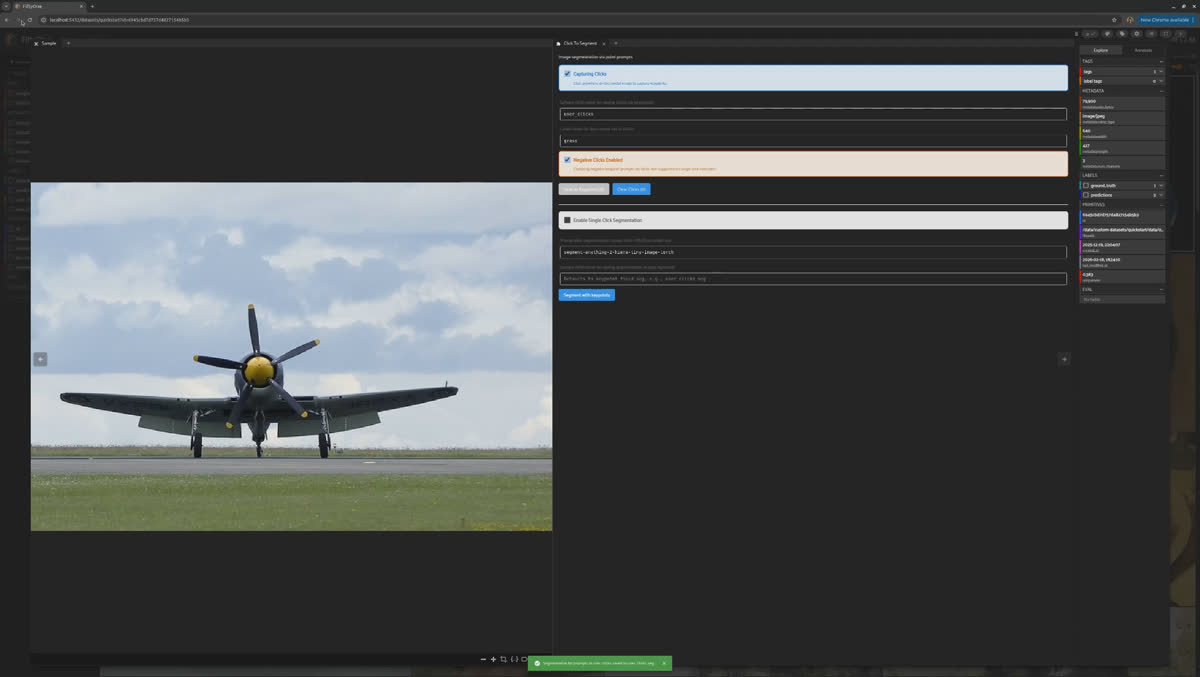
The Click-To-Segment feature in Fiftyone Labs brings interactive segmentation directly into the FiftyOne App. Click on an image, and you'll generate an instance segmentation mask using a promptable segmentation model of your choice from the FiftyOne Model Zoo.
Installation
Getting started with
Click-to-Segment is straightforward:1. Install FiftyOne and FiftyOne Labs panel
$ pip install fiftyone
$ fiftyone labs install labs_panel
2. Install
Click-to-Segment panel- Via FiftyOne Labs panel: Instructions available here.
- Via FiftyOne CLI:
$ fiftyone labs install click_segmentation
Usage
1. Launch the FiftyOne App
import fiftyone.zoo as foz
import fiftyone as fo

dataset = foz.load_zoo_dataset("quickstart")

# For a smoother experience, ensure that all the samples have metadata.
if dataset.count("metadata") != len(dataset):
    dataset.compute_metadata()

session = fo.launch_app(dataset)
2. Open a sample modal and launch the
Click-to-Segment panel3. Read the instructions to understand how you can interactively create segmentation masks in FiftyOne!
How Click-to-Segment works
To capture image coordinates for prompting, enable
Activate Click Capture. The panel captures coordinates by clicking within the Sample modal and saves each set of clicks as an instance-level Keypoint in a named sample field (e.g., user_clicks) of type Keypoints. Each Keypoint can contain both positive and negative point prompts, giving you fine-grained control over your masks.When you prompt a model from the FiftyOne Model Zoo with a
Keypoints sample field, it generates a new sample field (e.g., user_clicks_seg) of type Detections, containing a list of Detection instances. One Detection with the instance segmentation mask is generated per Keypoint object.Once the keypoints and segmentation masks are saved as sample fields, you can view them directly in the FiftyOne App — both in the Samples grid and the Sample modal.
Segment With Prompts Operator
Click-to-Segment also ships with a Segment with Prompts operator, which lets you run promptable segmentation with existing visual prompts saved in a sample field. This operator supports batched inference on FiftyOne Dataset as well as Dataset View. Users have the option to save the Keypoints in the Click-to-Segment panel and run inference via this operator.Why Interactive Segmentation Annotation Matters
Traditional polygon-based annotation tools require annotators to manually trace object boundaries point by point — a workflow that doesn't scale. Promptable segmentation models like SAM have shifted that paradigm by enabling AI-assisted image annotation from just a handful of clicks.
Click-To-Segment brings that capability natively into FiftyOne, making it easy to build high-quality segmentation datasets without leaving your data management workflow.
Conclusion
The
Click-to-Segment is an easy, interactive way to create segmentation mask annotations directly in FiftyOne! With this feature, you can:- Point-and-click prompting: Click anywhere on an image to provide visual point prompts for segmentation
- Positive and negative prompts: Control your masks by marking points that should or shouldn't contribute to the segmentation
- Model flexibility: Choose any promptable segmentation model from the FiftyOne Model Zoo
This is an experimental FiftyOne Labs feature currently under development. Try it out and share your feedback — we'd love to hear how you're using it and what would make it better.
Senior Machine Learning Engineer
I enjoy building machine learning systems at the intersection of computer vision, robotics, and 3D perception.
Over the past 9+ years, I've worked on neural rendering, scene understanding, AI-assisted annotation, foundation models, and scalable ML infrastructure for augmented reality, autonomous driving, and robotics. I am passionate about developing end-to-end solutions that combine research with production engineering to solve challenging problems.
Over the past 9+ years, I've worked on neural rendering, scene understanding, AI-assisted annotation, foundation models, and scalable ML infrastructure for augmented reality, autonomous driving, and robotics. I am passionate about developing end-to-end solutions that combine research with production engineering to solve challenging problems.
See all articles by Manushree Gangwar
Talk to an AI expert
Loading related posts...
© 2026 Voxel51 All Rights Reserved