Some Data You Can't Wait For. Some You Can't Survive.
Author

Hacker-in-Residence
Harpreet is Hacker-in-Residence at Voxel51, where he turns cutting-edge AI ideas into open-source prototypes and demos that push the boundaries of deep learning. From building tools that inspire to creating content that educates, Harpreet helps the AI community level up—one wild idea at a time.
See all articles by Harpreet Sahota
In this article
Why is the most safety-critical off-road data is the hardest to collect?Key TakeawaysThe STONE dataset and the ComfyUI–FiftyOne integrationStep 1: Find the data gaps in FiftyOneStep 2: Generate the weather conditions you can't wait forStep 3: Stage the off-road obstacles you can't drive throughStep 4: Keep the synthetic data honestThe payoff: ComfyUI and FiftyOne as one loopTry the workflow yourselfFrequently Asked Questions
In this article
Why is the most safety-critical off-road data is the hardest to collect?Key TakeawaysThe STONE dataset and the ComfyUI–FiftyOne integrationStep 1: Find the data gaps in FiftyOneStep 2: Generate the weather conditions you can't wait forStep 3: Stage the off-road obstacles you can't drive throughStep 4: Keep the synthetic data honestThe payoff: ComfyUI and FiftyOne as one loopTry the workflow yourselfFrequently Asked Questions
Try Voxel51 for yourself
Generating the off-road edge cases a robot can't collect, with ComfyUI running inside FiftyOne, and every synthetic frame is traceable to the real one it came from.
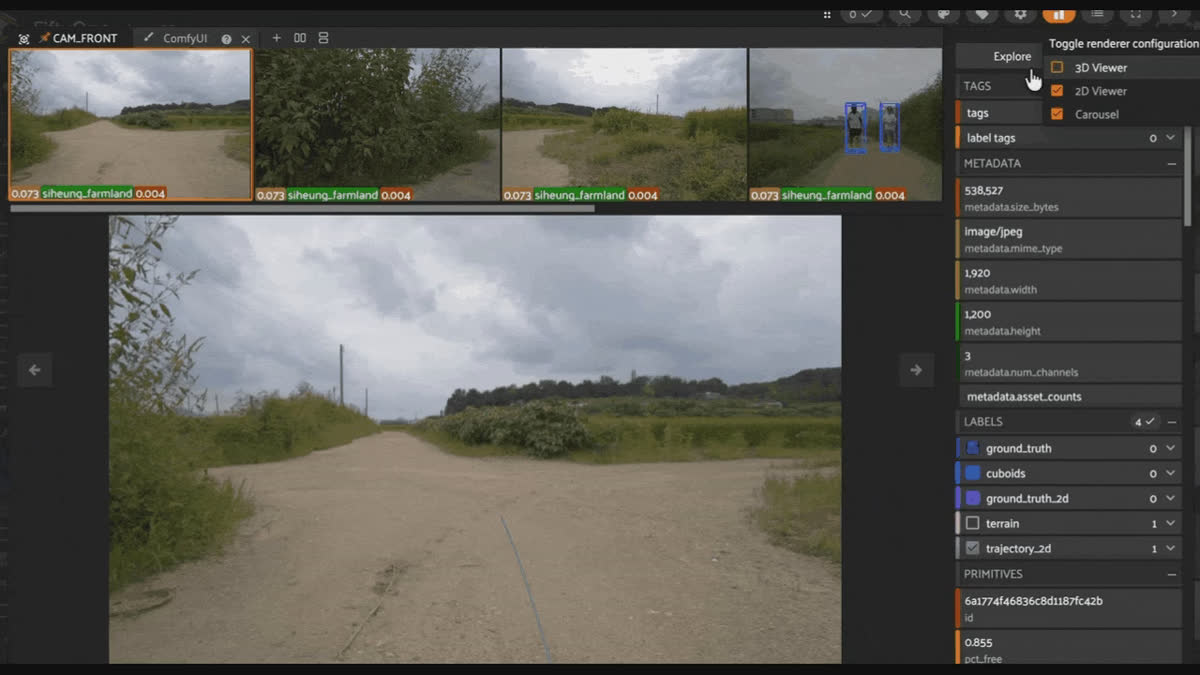
An off-road robot only knows the days it was driven.
Its training data was collected on a handful of routes, in whatever weather those runs happened to have, across ground that was mostly safe to cross. The world you deploy it into is wider and meaner than that. This post walks through a workflow for generating synthetic training data with ComfyUI, running directly inside FiftyOne. You produce the conditions and obstacles your robot will face but your dataset never captured, and keep every generated frame linked back to the real one it came from.
There are two kinds of missing data here.
The kind you can't wait for: every season, every time of day, at every site, on a collection schedule that would take a year. And, the kind you can't survive: nobody is going to point a real vehicle at a flooded trail or a washout just to film what failure looks like.
The most safety-critical data is the data that is hardest, or most dangerous, to get.
The fix is a data generation engine. ComfyUI generates the data you can't collect. FiftyOne is where you decide which gaps are worth filling, and where you catch the generations that lie. Generation on its own is chaos.
Curation is what turns it into a dataset.
Why is the most safety-critical off-road data is the hardest to collect?
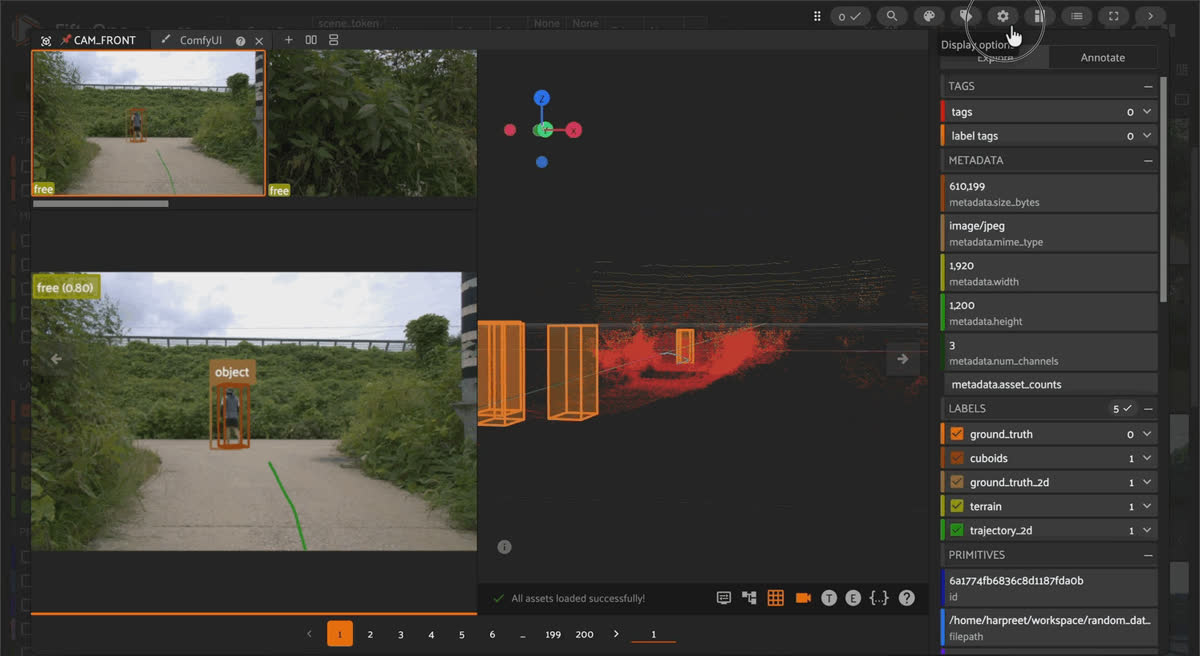
Two gaps appear in almost every perception dataset for robots moving through the real world.
The first is condition coverage.
A model that has only seen bright, dry conditions has quietly learned that the world is bright and dry. Rain, fog, dusk, low sun, and snow change the appearance of everything, including the ground the robot has to judge.
The second gap is obstacle scarcity.
The events you most need the model to handle correctly, standing water, deep mud, a downed tree across the trail, and a washed-out section of road, are exactly the events that are rare in normal operation.
A dataset built from ordinary driving is mostly made of ordinary driving.
Both gaps are expensive to close by collecting more data, and for the obstacles, collecting more is not just expensive but also unsafe. You cannot responsibly drive a real vehicle toward a flood to capture a few hundred frames of it. So the data you need most is the data you are least able to gather.
That is the problem: synthetic data is actually good at it, as long as you stay disciplined about which synthetic frames you trust.
Key Takeaways
- The most safety-critical off-road perception data, adverse weather and dangerous obstacles, is also the hardest and least safe to collect in the real world. Generating it synthetically targets exactly those gaps without putting a vehicle at risk.
- The ComfyUI plugin runs inside the FiftyOne sample modal, so you curate, generate, and review synthetic data in one loop instead of switching between two separate tools.
- Every ComfyUI generation saved in FiftyOne stores its generation parameters (prompt, seed, sampler, steps, CFG, and model) and the full workflow graph on the new sample, and embeds the generating workflow in the output image, so any synthetic frame can be reproduced and traced back to the real frame it came from.
- Generating synthetic data is only half the loop. Curating it in FiftyOne, culling near-duplicates and catching frames whose edits no longer match their labels, is what keeps synthetic data from degrading the model.
- Synthetic generation augments real-world data collection rather than replacing it, because these edits change camera appearance, not the underlying 3D sensor ground truth.
The STONE dataset and the ComfyUI–FiftyOne integration
For a concrete example, this walkthrough uses STONE, an off-road traversability dataset from ICRA 2026 (parsed as a FiftyOne grouped dataset).
Each group is a single keyframe from the vehicle and contains seven slices: six surround cameras (CAM_FRONT, CAM_FRONT_LEFT, CAM_FRONT_RIGHT, CAM_BACK, CAM_BACK_LEFT, CAM_BACK_RIGHT) and a LIDAR_TOP 3D scene. Every frame carries a terrain label derived from the voxel grid, with classes free, traversable, potentially traversable, and non-traversable, plus per-frame fractions like pct_non_traversable that tell you how much of the scene falls into each class.
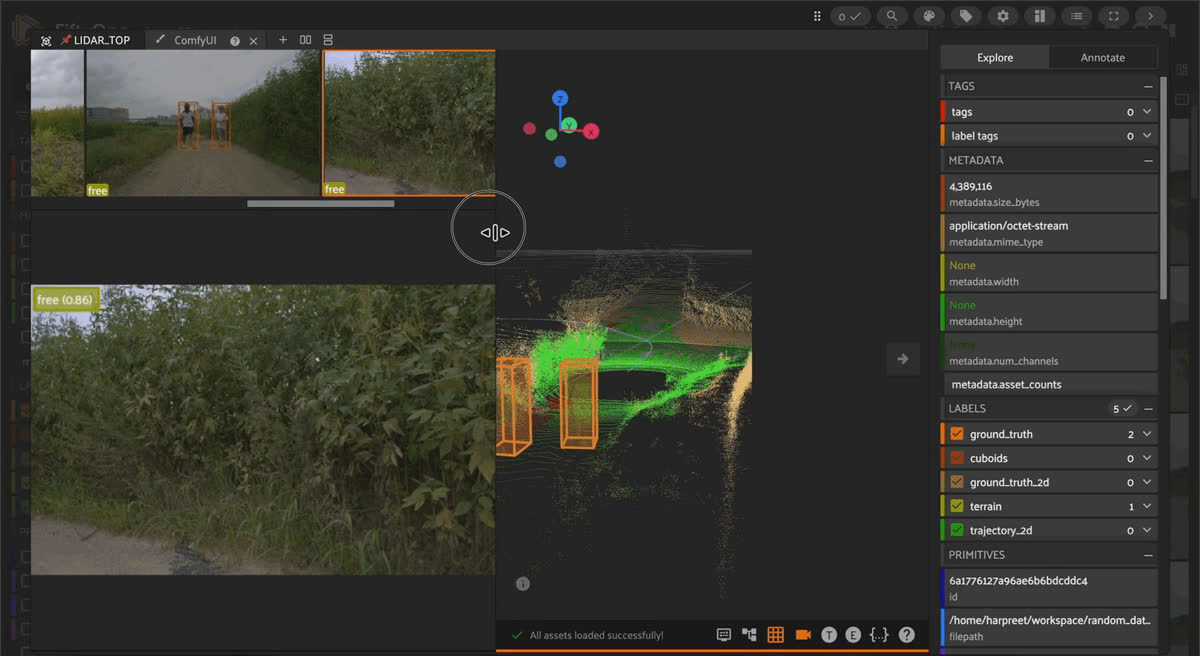
The ComfyUI plugin embeds a full ComfyUI instance inside the FiftyOne sample modal.
Open a sample, open the ComfyUI tab, and the current slice is already available as an input image. Run any workflow against it and save the result back to your dataset as a new sample or a new group slice. Every save records the generation parameters as fields on the new sample (the prompt, seed, model, sampler, and the rest) and writes a source_sample_id that points back to the frame you started from. That link is the whole point.
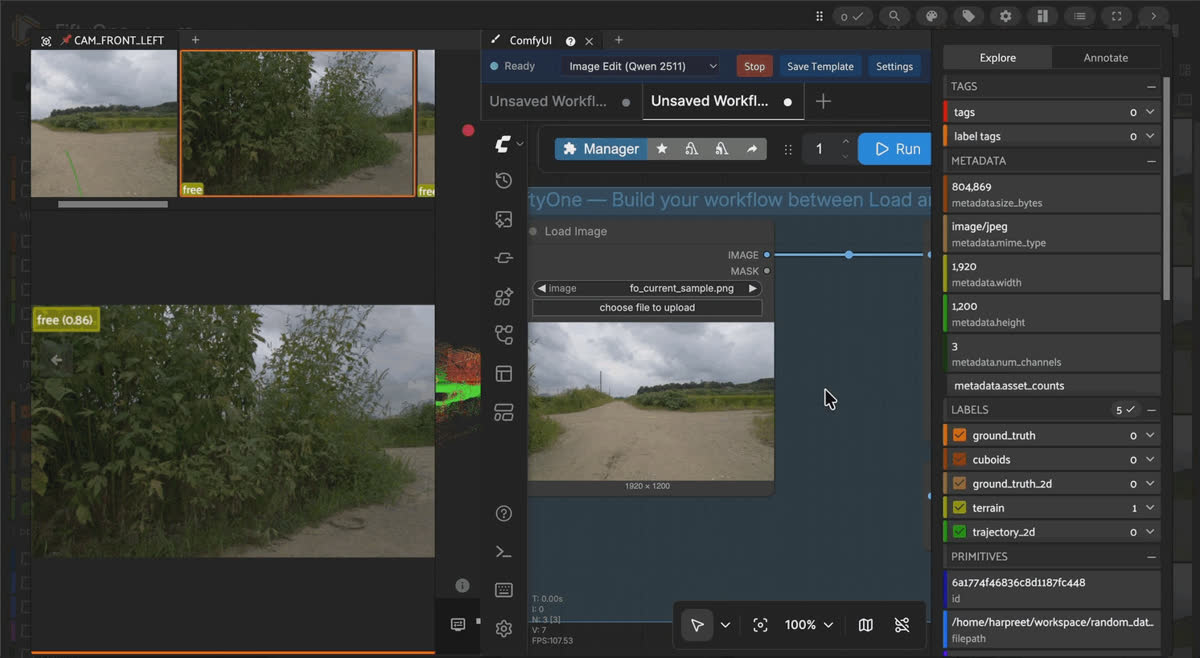
Synthetic data you can trace is an asset. Synthetic data you can't trace is a liability.
The remainder of this piece assumes you have FiftyOne and the ComfyUI plugin installed, and that the appropriate models for each workflow have been downloaded. The workflow will tell you which models you need to download. These docs will teach you how to download models.
Good to know. How do you generate synthetic training data for an autonomous robot?
Start from real frames, not from scratch. You open a real sample inside FiftyOne, run a ComfyUI workflow against it to change conditions or add an obstacle, and save the result back to the dataset with its generation parameters and a link to the source frame. Then you review the results in FiftyOne and keep only the ones that hold up.
Step 1: Find the data gaps in FiftyOne
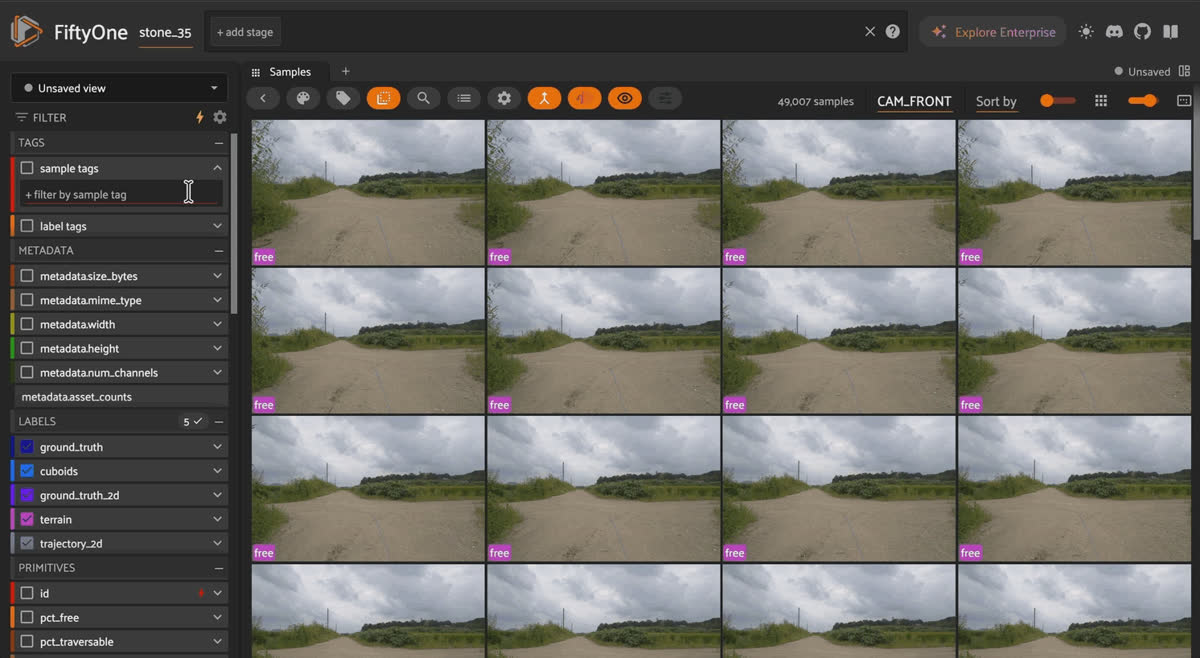
You don't generate blindly. You look first, and you let the dataset tell you what it is short on.
Load STONE, compute an embedding visualization on one camera slice, and launch the App.
import fiftyone as fo
import fiftyone.brain as fob

from fiftyone.utils.huggingface import load_from_hub

dataset = load_from_hub("Voxel51/STONE")

# Study appearance coverage on one camera slice
cam_front = dataset.select_group_slices("CAM_FRONT")
fob.compute_visualization(cam_front, brain_key="cam_front_viz")  # pass model=... or your own embeddings

session = fo.launch_app(dataset)
In the App, open the embeddings plot. Then color the grid by terrain, or any other sample field, and scrub through the samples to get a feel for the data.
You are looking for two things.
First, there is the variety in scene conditions. Collection campaigns tend to run in workable weather, so the conditions in the data are usually far narrower than the conditions the robot will drive in. Look at how tightly the points group together.
Second, is how rare any adverse/dangerous frames are. Use the terrain fractions to gauge how often the vehicle actually met non-traversable ground. In most collections, these frames are a small minority.
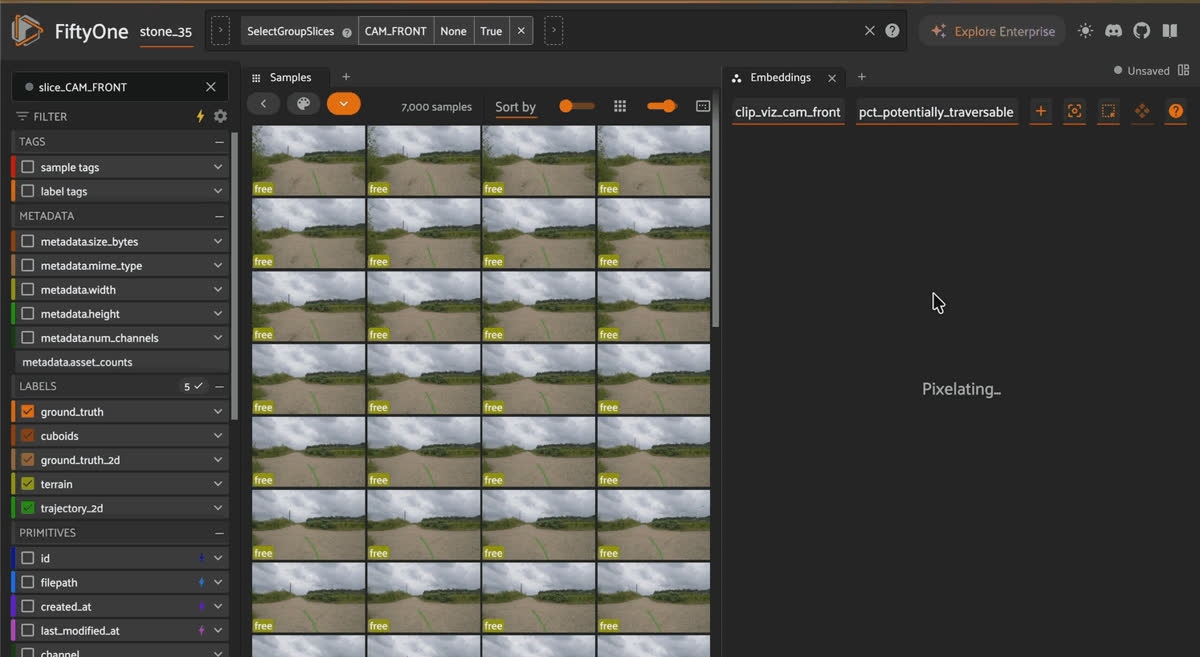
As you explore, tag what you want to work from.
Tag frames you want to in-paint. Tag clean, drivable scenes you will use as canvases for in-painting some type of driving obstacle. By tagging, you’re deciding, by eye, which real frames are worth turning into synthetic ones.
If you would rather start from the numbers, you can tag samples programmatically using the FiftyOne SDK and refine them by hand from there.
from fiftyone import ViewField as F
# Optional: seed the restyle set from a fraction threshold, then refine in the App
cam_front.match(F("pct_non_traversable") > YOUR_CUTOFF).tag_samples("restyle")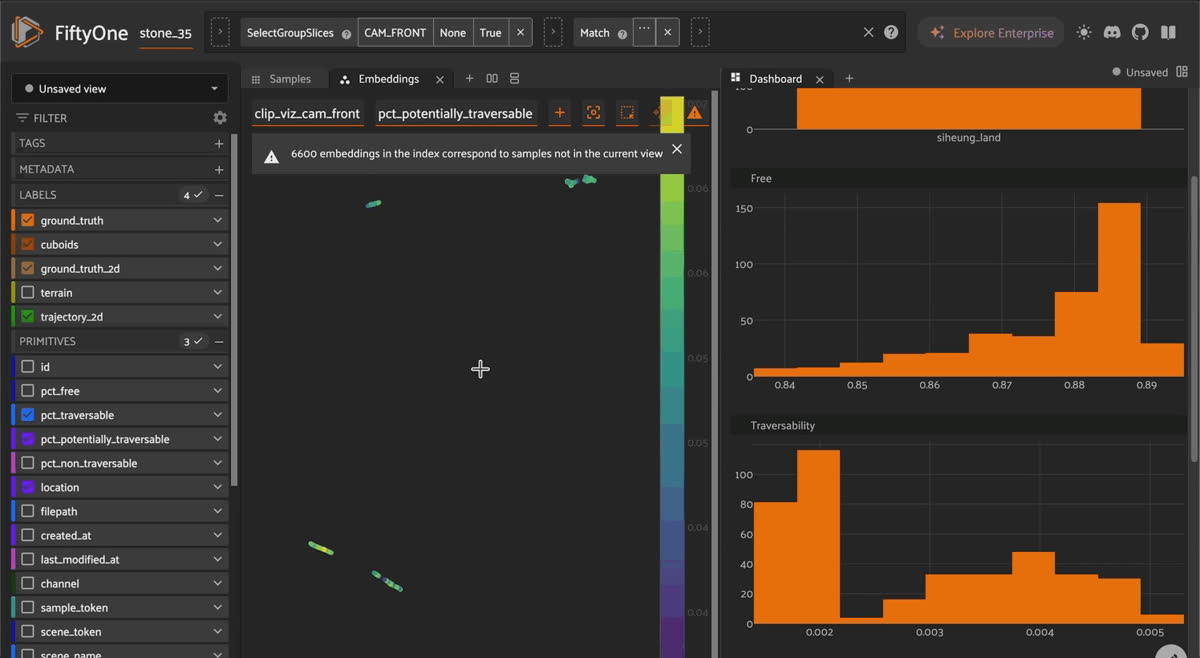
Step 2: Generate the weather conditions you can't wait for
You don’t necessarily need to edit all six group slices (cameras) and hope they agree. You can edit one group slice and generate the other views from it. One edit becomes a coherent keyframe.
Good to know. What is domain randomization, and how does this relate?
Domain randomization means varying the appearance of your training data (lighting, weather, textures, viewpoints) so that a model learns the underlying task rather than the look of the collection conditions. Restyling real frames into rain, fog, dusk, and snow is a targeted form of it, aimed at the specific conditions your data lacks rather than at random noise.
Open one of your restyle groups, go to the CAM_FRONT slice, and open the ComfyUI tab.
The slice is already loaded as the input image. Build a simple restyle: load the image, run it through the Qwen-Image-Edit workflow (or a similar workflow) with a conditional prompt (rain on the trail, heavy fog, dusk light, fresh snow), then save the result by right-clicking the SaveImage node and selecting Save as a new sample.
That single save creates a fresh synthetic keyframe, tags it as a ComfyUI output, captures the generation parameters, and writes source_sample_id back to the real frame.
Example prompts: Qwen-Image-Edit weather restyle (run on CAM_FRONT first)
Rain: “Make this an overcast, rainy scene. Wet ground with puddles and reflections, light rain in the air, dark gray sky, lower contrast. Keep the terrain layout, objects, and camera framing identical.”
Fog: “Add dense fog that reduces visibility. Soft, diffuse light, muted colours, low contrast, distant terrain fading into a gray haze. Keep all terrain and objects in the same positions.”
Dusk: “Change the time of day to dusk. Warm, low-angle light, long shadows, an orange-and-pink sky, dimmer overall illumination. Preserve the scene contents and camera framing.”
Night: “Convert the scene to night. Mostly dark, lit by the vehicle's headlights, with deep shadows and faint ambient skylight. Keep the ground and obstacles unchanged.”
Snow: “Cover the scene in fresh snow. White snow on the ground and surfaces, cool overcast light, light snowfall, reduced colour saturation. Keep the underlying terrain shape and object positions the same.”
Starting points, tune to taste. The clause about keeping geometry and objects fixed matters: it pushes the edit toward appearance-only changes, so the terrain label underneath remains as valid as possible. The gate step in Step 4 is where you catch the cases that did not hold.
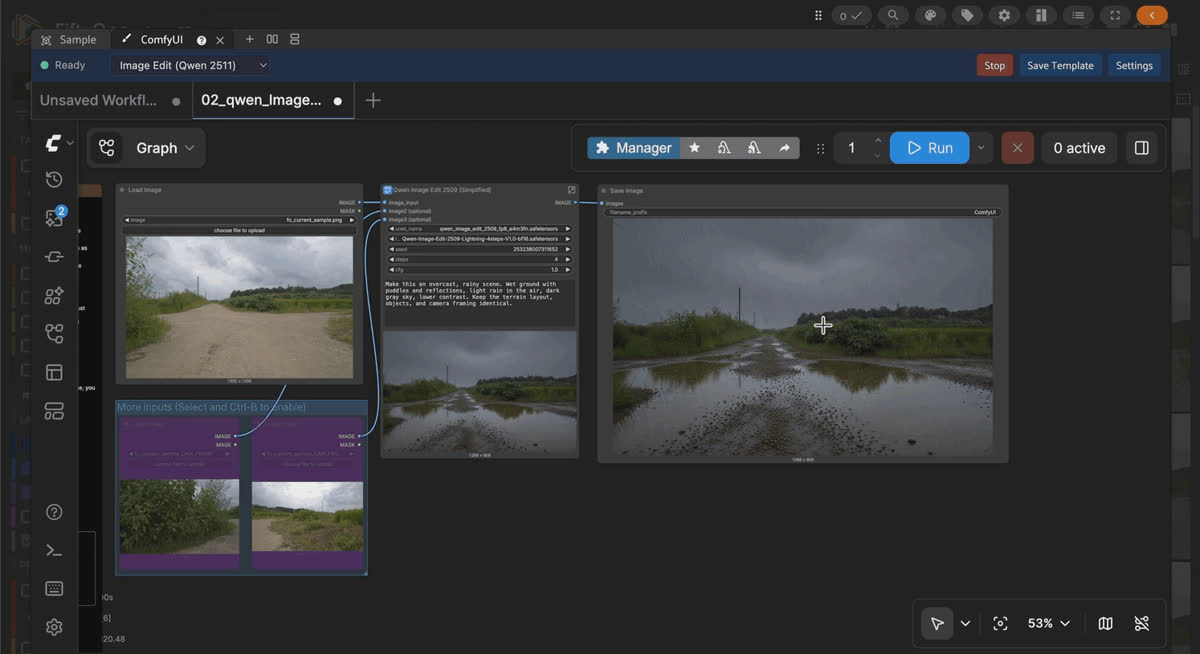
Now fill the rest of the rig from that single edited frame.
Open the new seed sample, open the ComfyUI tab, and load the 1-click Multiple Scene Angles template, which takes one image and produces several viewpoints. Adapt it once into a reusable STONE rig and save it, so every future keyframe is one click.
Camera-angle prompts: paste one per output branch
CAM_FRONT: “Forward-facing view from the vehicle, looking straight ahead along the trail. Keep the same weather, lighting, time of day, and ground surface as the input image.”
CAM_FRONT_LEFT: “Rotate the camera about 55 degrees to the left at the same mounting height, showing the terrain ahead and to the left of the vehicle. Match the input's weather, lighting, and ground surface exactly.”
CAM_FRONT_RIGHT: “Rotate the camera about 55 degrees to the right at the same mounting height, showing the terrain ahead and to the right of the vehicle. Match the input's weather, lighting, and ground surface exactly.”
CAM_BACK: “Rear-facing view from the vehicle, looking directly behind it along the trail it has traveled. Keep the same weather, lighting, time of day, and ground surface as the input.”
CAM_BACK_LEFT: “Rotate the camera about 120 degrees to the left, showing the terrain behind and to the left of the vehicle. Match the input's weather, lighting, and ground surface exactly.”
CAM_BACK_RIGHT: “Rotate the camera about 120 degrees to the right, showing the terrain behind and to the right of the vehicle. Match the input's weather, lighting, and ground surface exactly.”
Front and side views share real content with the input and stay fairly grounded. The rear views are largely invented, since the front image holds no information about what is behind the vehicle; scrutinize those hardest at the gate. You can also keep your original seed as CAM_FRONT instead of regenerating it.
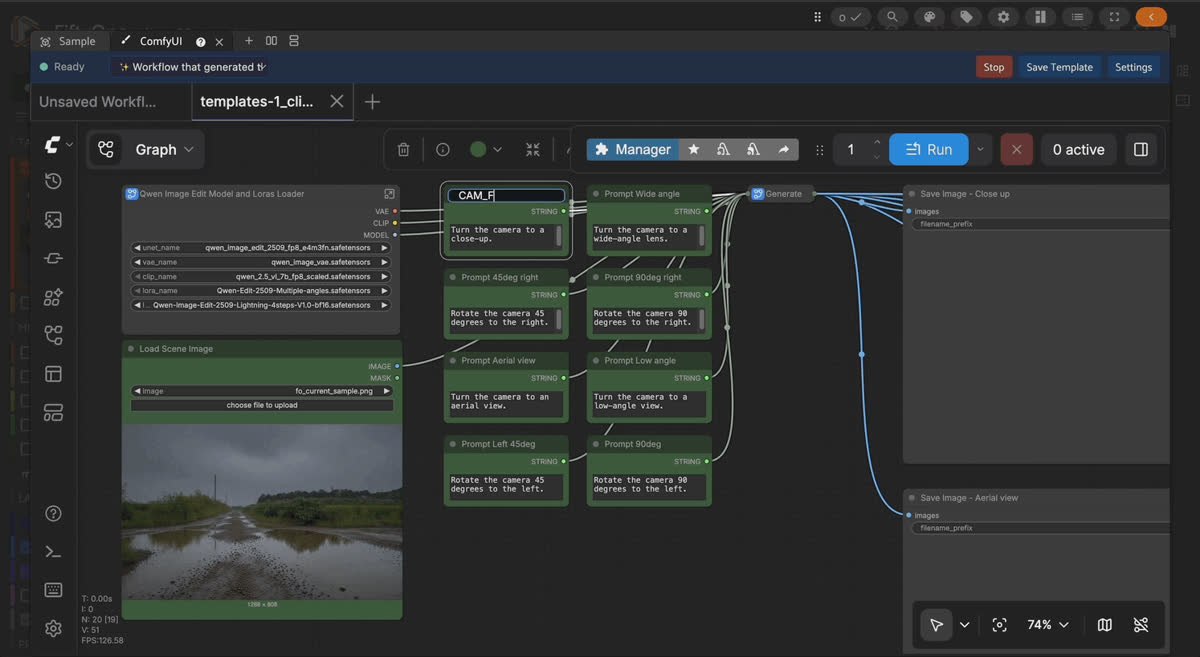
Keep it honest. The multiple-angles workflow produces plausible alternate viewpoints, not geometrically calibrated reprojections of the real camera extrinsics. Nothing in this step touches the LIDAR_TOP slice or the voxel ground truth. You are augmenting camera appearance, not regenerating the sensor rig, and the post should say so plainly.
Step 3: Stage the off-road obstacles you can't drive through
Track A changes the weather. Track B changes what is on the ground.
The mechanics are the same two stages, with one addition at the end: you label the obstacle yourself in the App.
Open one of your images tagged as comfy_output groups at the CAM_FRONT slice, then open the ComfyUI tab. Look for the Flux Infill workflow.
Mask the part of the trail where the obstacle should go, in-paint a plausible danger into it (standing water, deep mud, a fallen tree, a washout), and save the edited image as a new sample. Image only for now, no label yet.
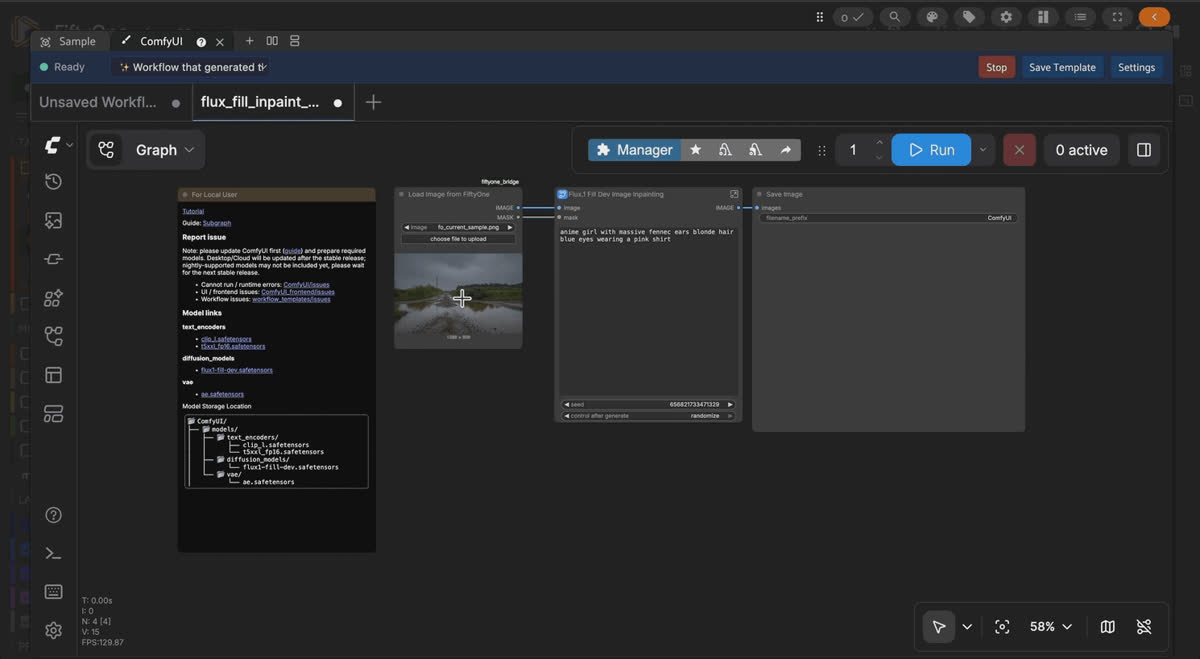
Then fill the six camera views from this seed exactly as in Step 2, using the template you saved, so every camera shows the staged obstacle.
Example prompts: obstacle inpainting (mask the trail region first)
Standing water: “A wide puddle of muddy standing water across the trail, reflecting the sky and surrounding terrain, blending naturally into the dirt at the edges. Match the scene lighting and perspective.”
Deep mud: “A stretch of deep, wet mud with tire ruts, dark saturated brown, blending into the surrounding dry trail. Match the scene lighting and perspective.”
Fallen tree: “A fallen tree trunk lying across the trail, with bark texture and a few broken branches, casting shadows consistent with the scene lighting. Blend naturally into the surroundings.”
Washout: “A washed-out, eroded section of trail with a rutted gully, exposed soil and loose rocks, and crumbling edges. Match the surrounding terrain, lighting, and perspective.”
Rockfall: “A pile of fallen rocks and rubble of varied sizes across the trail, with shadows matching the scene lighting. Blend into the surrounding ground.”
Keep the mask tight to the region you want changed. Everything outside the mask stays real, which is exactly why you can annotate the obstacle with confidence afterward.
Now label it.
Because you placed the obstacle, you know exactly where it is, so the annotation is quick and reliable. Open the new synthetic group and annotate the obstacle region directly in the FiftyOne App on each camera view that shows it.
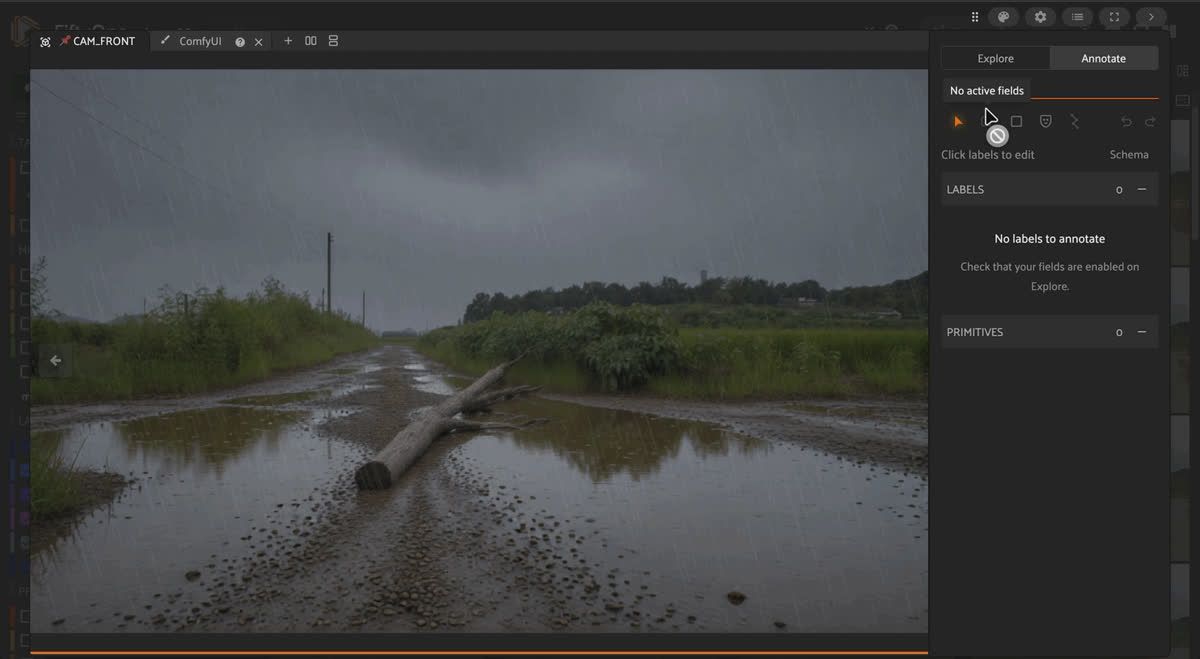
Keep it honest. The obstacle label is a camera-space annotation you draw by hand. It does not modify STONE's 3D voxel ground truth, and it should not pretend to do so. You are intentionally adding a new label to a synthetic frame and making it clear. The LIDAR_TOP geometry under the synthetic frame is not edited.
Good to know. Can you add labels to AI-generated images?
Yes. When you stage an obstacle, you place yourself so you know exactly where it is, then annotate it directly in the FiftyOne App on the views that show it and deliberately set the class label. The label is a real annotation you author on the synthetic frame, separate from any 3D ground truth in the original dataset.
Step 4: Keep the synthetic data honest
Everything you generate is a guess until you check it.
This is the half of the loop people skip, and it is the half that decides whether your synthetic data helps the model or quietly poisons it. Go back to FiftyOne, bring the new samples into the picture, and look hard.
Two things go wrong, and both are visible.
The first is redundancy.
You will often generate what feels like 40 new frames, but they are really just one frame with small variations. Rank the camera slices by uniqueness, or run a similarity index and cull near-duplicates, because they add cost and bias without increasing coverage.
The second is label conflict.
A restyle can contradict the label underneath it. If a snow pass buries a path that the terrain label still marks as traversable, the pixels now indicate impassability, while the label says go, and training on that teaches the model the wrong lesson. Cut those, or relabel them on purpose.
Same check for the obstacles: if a staged obstacle reads wrong or the region is sloppy, fix it before it ships.
Generation is chaos. FiftyOne is where the chaos gets caught.
Good to know. How do you stop synthetic data from corrupting your dataset?
Curate before you train. Use uniqueness or similarity to remove near-duplicates that add bias without coverage, and review for label conflicts where an edit no longer matches the label underneath it. Approve frames explicitly, and keep the link back to each source frame so the synthetic data stays auditable.
The payoff: ComfyUI and FiftyOne as one loop
Train from your real frames plus the synthetic ones you approved.
Because every generated frame carries source_sample_id, you can always trace a synthetic sample back to the real keyframe it grew out of, audit what you added, and reproduce any of it from the saved generation parameters.
The change is in the cost of hard requests.
We need rain data, so we need to schedule a field day. We need washout data, which means finding a washout and driving at it. You curate in FiftyOne to find what is missing, generate it in ComfyUI without leaving the app, gate it back in FiftyOne, and train. ComfyUI and FiftyOne stop being two tools and become one loop.
Random generation, tamed by curation.
Good to know. Does this replace real-world data collection?
No. It fills gaps that are slow or unsafe to collect, in addition to real data. The honest framing is augmentation, not replacement: generated frames are plausible, not measured, and they earn their place by surviving review.
Try the workflow yourself
Install FiftyOne, ComfyUI, the plugin, load STONE, and run the loop on a few frames of your own. The links below get you to the dataset, the workflow template, and the docs.
- FiftyOne ComfyUI plugin: https://github.com/harpreetsahota204/ComfyUI_in_FiftyOne
- STONE dataset: huggingface.co/datasets/Voxel51/STONE
- 1 click Multiple Scene Angles template: comfy.org workflow template
- FiftyOne docs: docs.voxel51.com
- ComfyUI: github.com/comfyanonymous/ComfyUI
Frequently Asked Questions
Does generating the other five camera views from one edited frame preserve geometry?
No. The multiple-angles ComfyUI workflow generates plausible alternate viewpoints, not geometrically calibrated reprojections of the real camera extrinsics. The front and side views share real content with the seed frame and stay fairly grounded, while the rear views are largely invented, since the front frame holds no information about what is behind the vehicle, so scrutinize those hardest during review. This step changes camera appearance only and never touches the
LIDAR_TOP slice or the voxel ground truth.Are STONE's original 3D voxel labels still valid on a synthetic frame?
Not automatically. The 3D voxel ground truth from STONE is left unedited when you generate a synthetic frame, but the new pixels can contradict it. A snow restyle can bury a path the terrain label still marks traversable, and a staged obstacle can sit on ground still labeled free. Treat the original 3D labels as unverified on any synthetic frame, then either cut the conflicts or relabel them deliberately in FiftyOne. Any obstacle you draw is a camera-space annotation, separate from the 3D ground truth.
What gets stored on each synthetic sample, and can I reproduce it?
Every save through the ComfyUI plugin in FiftyOne records the generation parameters (prompt, seed, sampler, steps, CFG, and model) and the full workflow graph as fields on the new sample. The plugin also embeds the generating workflow in the output image's PNG metadata, so opening that sample later auto-reloads the exact graph that made it, including a loader pointing at the original source image. That makes any synthetic sample reproducible and traceable to its origin.
How do I stop near-duplicate generations from inflating the dataset?
Use the FiftyOne Brain to rank the camera slices by uniqueness, or build a similarity index and cull near-duplicates before training. Forty new frames that are really one frame with small variations add cost and bias without adding coverage.
Can I drive curation and tagging from the SDK instead of by hand?
Yes. The FiftyOne SDK lets you tag candidate frames programmatically, for example by thresholding on the
pct_non_traversable field, and you can then refine the selection by eye in the App. Tagging entirely by hand works too, and the walkthrough shows both paths.Hacker-in-Residence
Harpreet is Hacker-in-Residence at Voxel51, where he turns cutting-edge AI ideas into open-source prototypes and demos that push the boundaries of deep learning. From building tools that inspire to creating content that educates, Harpreet helps the AI community level up—one wild idea at a time.
See all articles by Harpreet Sahota
Try Voxel51 for yourself
Loading related posts...
© 2026 Voxel51 All Rights Reserved


